Get started with 2.0.3
- Download the ZIP package. Right-click it and choose Extract All.
- Move the extracted folder to a permanent location. Keep both applications and the support files together.
- Open DeskCal-config.exe. On the Display tab, select Use primary display size.
- On the Calendar tab, choose the calendar size, language, background opacity and margins from the right and bottom edges.
- Click Save and create wallpaper. The status area shows the result and any warnings.
The settings interface is in English. Calendar labels follow the selected calendar language, so you can use your preferred locale.
Choose NASA or your own photo mix.
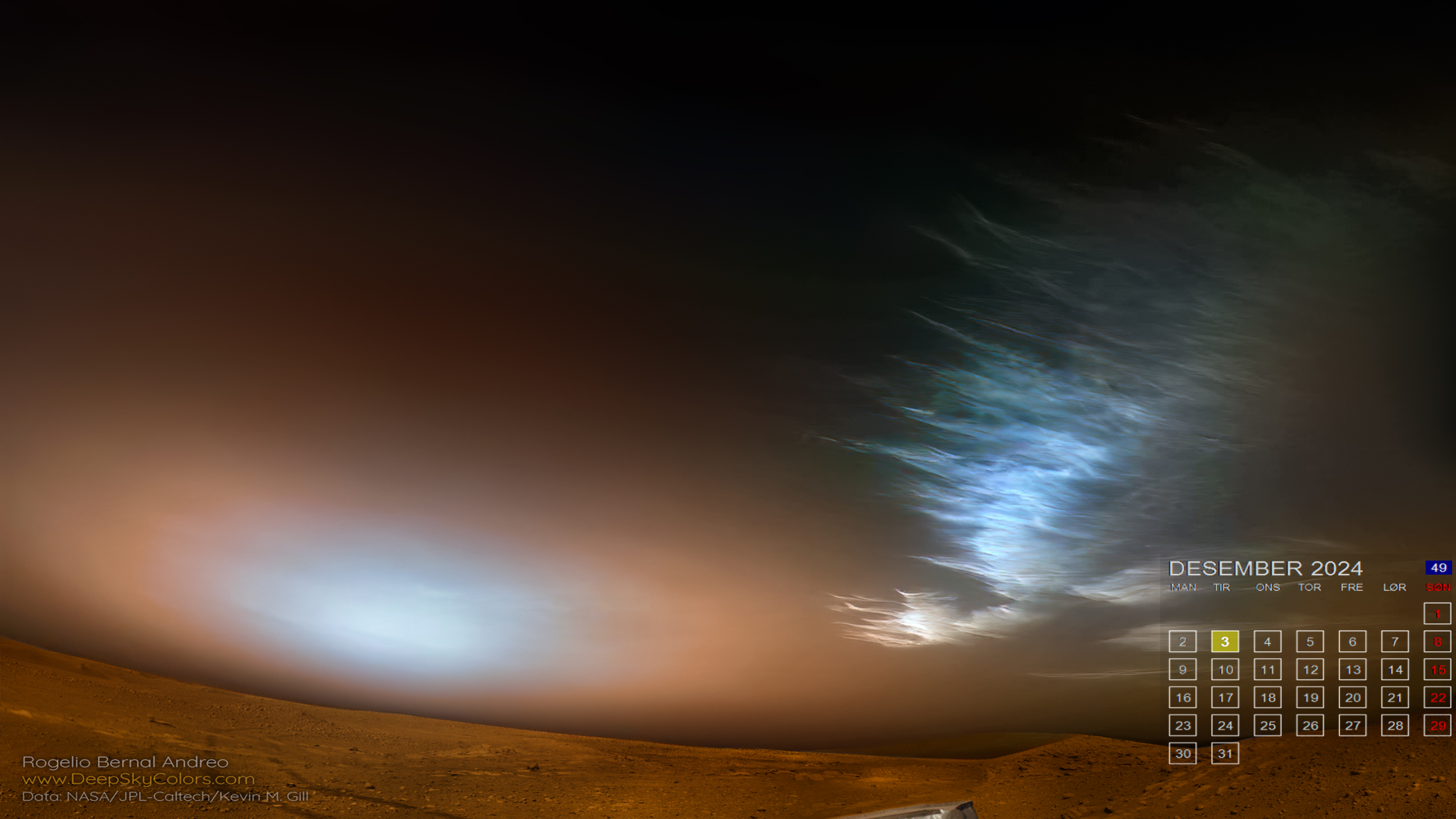
With Use NASA enabled, DeskCal first tries the latest NASA APOD image. No API key is required. If the entry is a video or the image cannot be downloaded, DeskCal tries your fallback sources.
- Open Images. Enable Use NASA to try NASA first, or disable it to use the Picsum/private mix directly.
- Select Use private photos if you want to include your own photos.
- Choose a photo folder. Select Include subfolders if needed.
- Set the private photo percentage. Picsum automatically gets the remainder up to 100%.
Example: 30% private photos means a 30% chance of choosing a private fallback and a 70% chance of choosing Picsum when NASA fails. With NASA enabled, these percentages apply only when NASA does not provide an image. With NASA disabled, they apply to each new image directly. NASA has no percentage. With private photos disabled, the mix is 100% Picsum.
A source set to 0% is never used. If the chosen fallback fails, the other is tried if its percentage is positive. If all available sources fail, your existing Windows wallpaper stays in place.
Your private photos are never uploaded. JPG/JPEG, PNG, BMP and the first frame of GIF files are supported.
Set up automatic updates
DeskCal.exe updates your wallpaper and exits without opening a window. Use DeskCal-config.exe to change settings.
- Open PowerShell in the extracted application folder.
- Run the command below to register the task. The script displays the result and waits for Enter.
.\Install-Task.ps1The task has Windows startup and sign-in triggers for the current user. Wallpaper updates require an interactive user session. Registration may require administrator rights; use the account whose wallpaper you want to update.
Leave your PC running for days? Add a daily trigger in Task Scheduler. This is optional and is not added by the installation script.
PowerShell says “running scripts is disabled”?
You can create the task directly in Windows Task Scheduler:
- Select Create Task and name it DeskCal.
- Select Run only when user is logged on.
- Add an At log on trigger for your account. Optionally add At startup and Daily triggers.
- Under Actions, select Start a program and browse to DeskCal.exe in its permanent folder. No arguments are required.
- Save the task. Right-click it and select Run to test it.
Remove older DeskCal tasks to avoid duplicate runs. If you move the application folder, update the program path in the task.
What’s new in 2.0.3 — English edition
-
Simpler settings
The settings interface and messages are in English. Images, Display and Calendar tabs keep the controls organized. The interface includes logos, a version number and a website link.
-
Two apps, one folder
A separate settings app and a quiet wallpaper updater. Required .NET libraries are included in the distribution.
-
A clearer calendar
Centered day and week numbers, red Sundays and a highlight for today’s date.
-
Useful status messages
See the image source, original resolution and download errors. Very small NASA images and icon files are rejected.